Share a chart: a short link to your preset
What you need
- An account on the platform.
- A saved chart preset in the Presets panel on the right (the bookmark icon). A chart preset remembers the whole chart: coin, timeframe, indicators with their settings and the pane layout.
Don't mix it up with an indicator preset. That one keeps the settings of a single indicator and can't be sent as a link.
Steps
1. Open the preset's menu
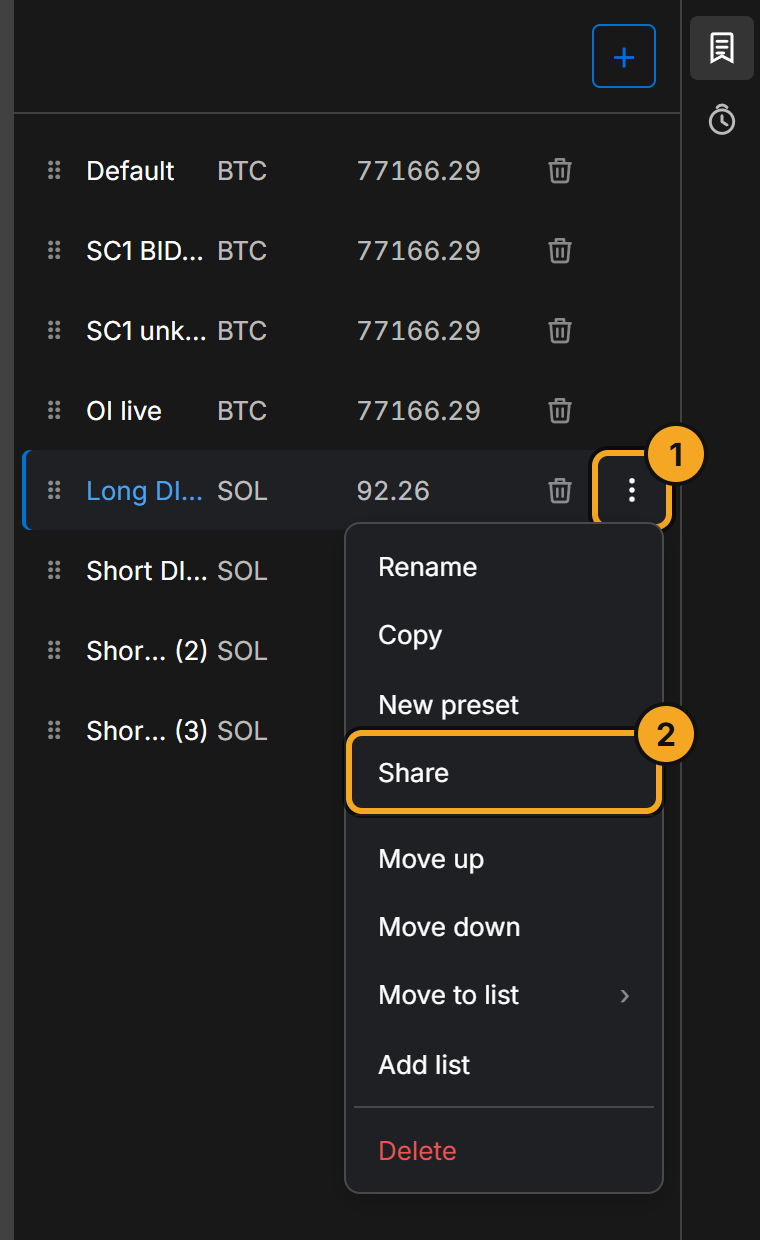
Open the Presets panel, hover over the preset's row and click ⋮. In the menu, pick Share.
2. The link is already copied
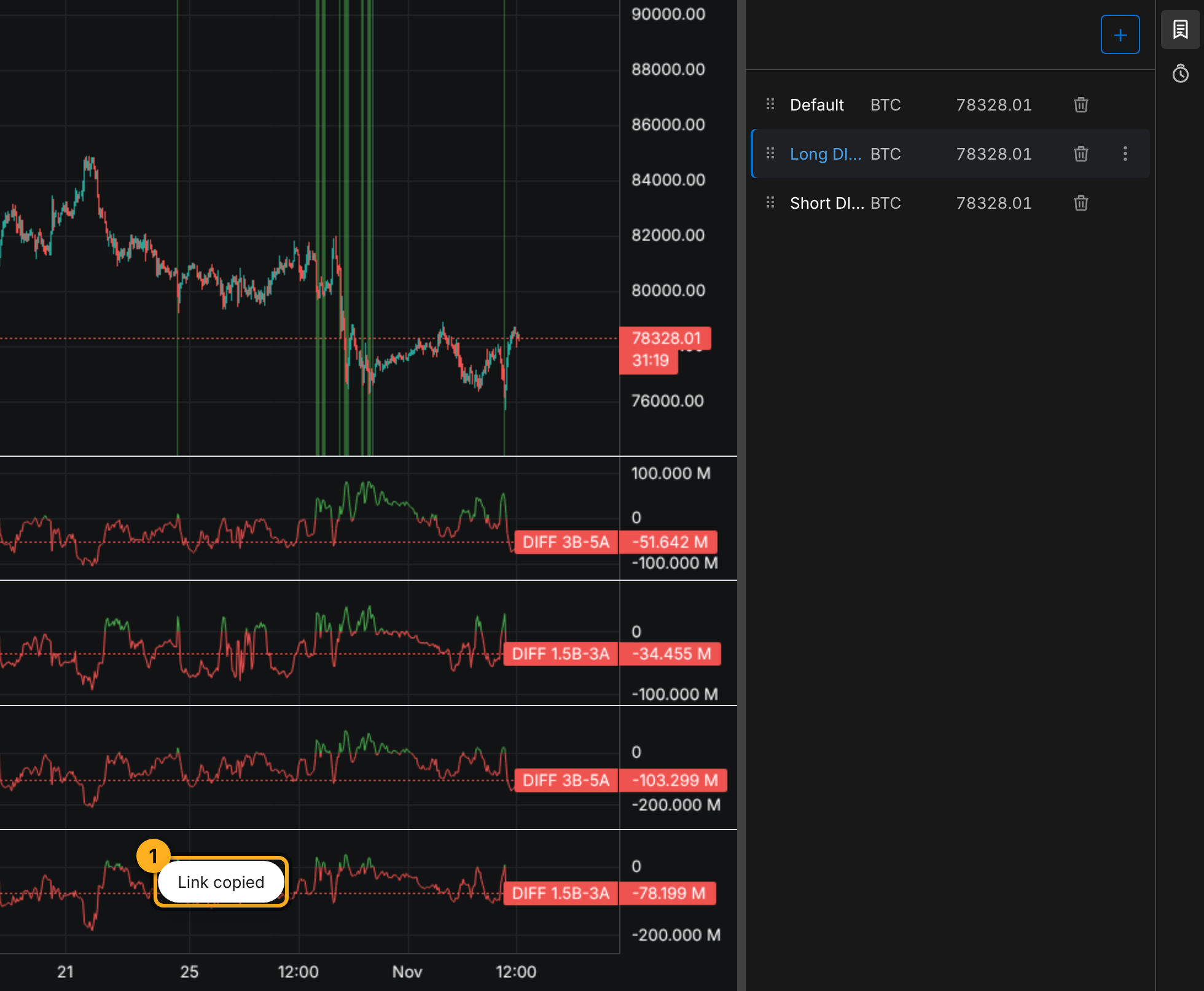
The platform creates a link like depthliquidity.com/p/… and puts it on your clipboard right away. Link copied appears at the bottom of the chart.
Two special cases:
- You changed the open preset and haven't saved it yet. Then the message reads Link copied. Unsaved changes aren't included. The link carries the saved version. To share the new one, first save the preset with the Save button at the top right above the chart, then click Share again.
- The browser doesn't allow clipboard access. Then a Preset link window opens with the link in a field. Copy it yourself and click Done.
3. Send the link
Paste the link wherever people will read it: a messenger, a post, an email.
What the recipient sees
The link opens the chart with your coin, timeframe and indicators, not the ones the recipient had open. Their own presets stay unchanged.
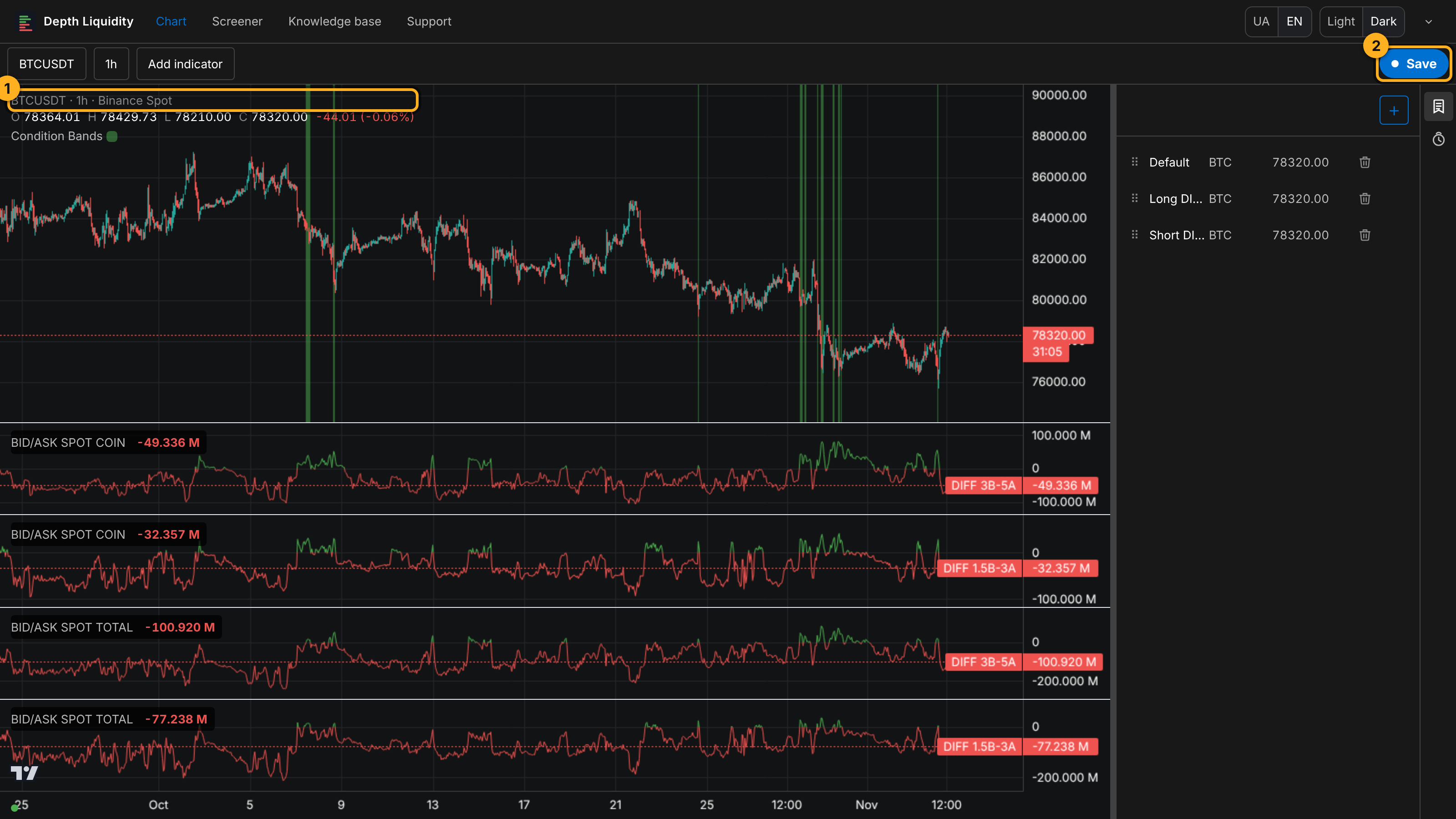
- With an account and a subscription, the recipient sees the full chart and a Save button at the top right above the chart. After the click, Added to your presets appears with the preset's name, and the preset lands in the recipient's Presets panel. If a preset with that name is already there, the copy gets a number, for example Long DIFF (2).
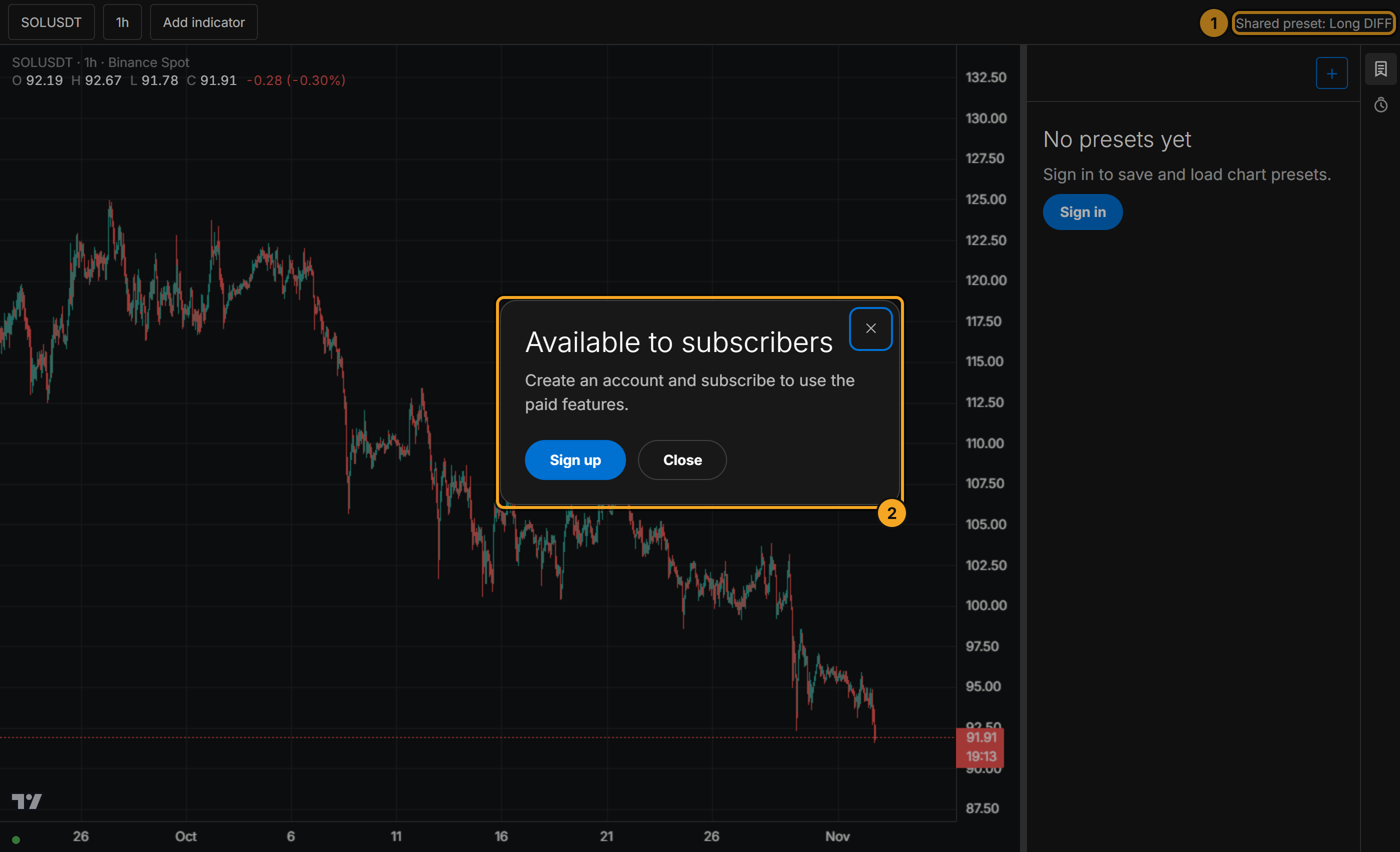
- Without signing in, there is a Shared preset label with the preset's name instead of the button. To save the preset, they need to sign in.
- Without a subscription, the author's coin and timeframe open, but without the indicators: on the platform they come with a subscription. An Available to subscribers window shows up instead.
If the link doesn't open
- This link doesn't work: there is no preset at this link. Check that the whole link was copied.
- Couldn't open the preset: the server couldn't be reached. Check your connection and open the link again.
In both cases the regular chart opens, and Go to the chart closes the message.
Tips
- A link is a snapshot. If you change the preset later, the link still shows the old version. For the new one, click Share again: every click makes a new link, and the old ones keep working.
- A link can't be withdrawn from the interface. Share only what you're fine leaving open to anyone who gets the link.
- Give the preset a clear name before you share it: the recipient sees it above the chart and in their Presets panel after saving. You can rename it with ⋮ → Rename.
Try it yourself
- Set up a chart with one or two indicators and save it as a preset.
- Click ⋮ → Share and open the link in a private browser window. You'll see the chart the way someone who isn't signed in sees it.
Not financial advice.