Indicator presets: save settings and reuse them
What you need
- An account with a subscription: indicators on the platform come with a subscription.
- An indicator that is already in at least one saved chart preset. If it isn't, first add the indicator to the chart and save the chart preset with the Save button at the top right above the chart, otherwise the indicator preset won't save (see Tips).
An indicator preset and a chart preset are different things. A chart preset remembers the whole chart: coin, timeframe, every indicator. An indicator preset remembers only one indicator's settings: the Arguments, Style, Bands and other tabs of its window.
Presets are in the settings windows of BID / ASK, Condition Bands, Open Interest, Liquidations, Funding and BTC mining cost. Each indicator type has its own list: a BID / ASK preset won't show up in the Funding window.
Steps
1. Open the presets menu
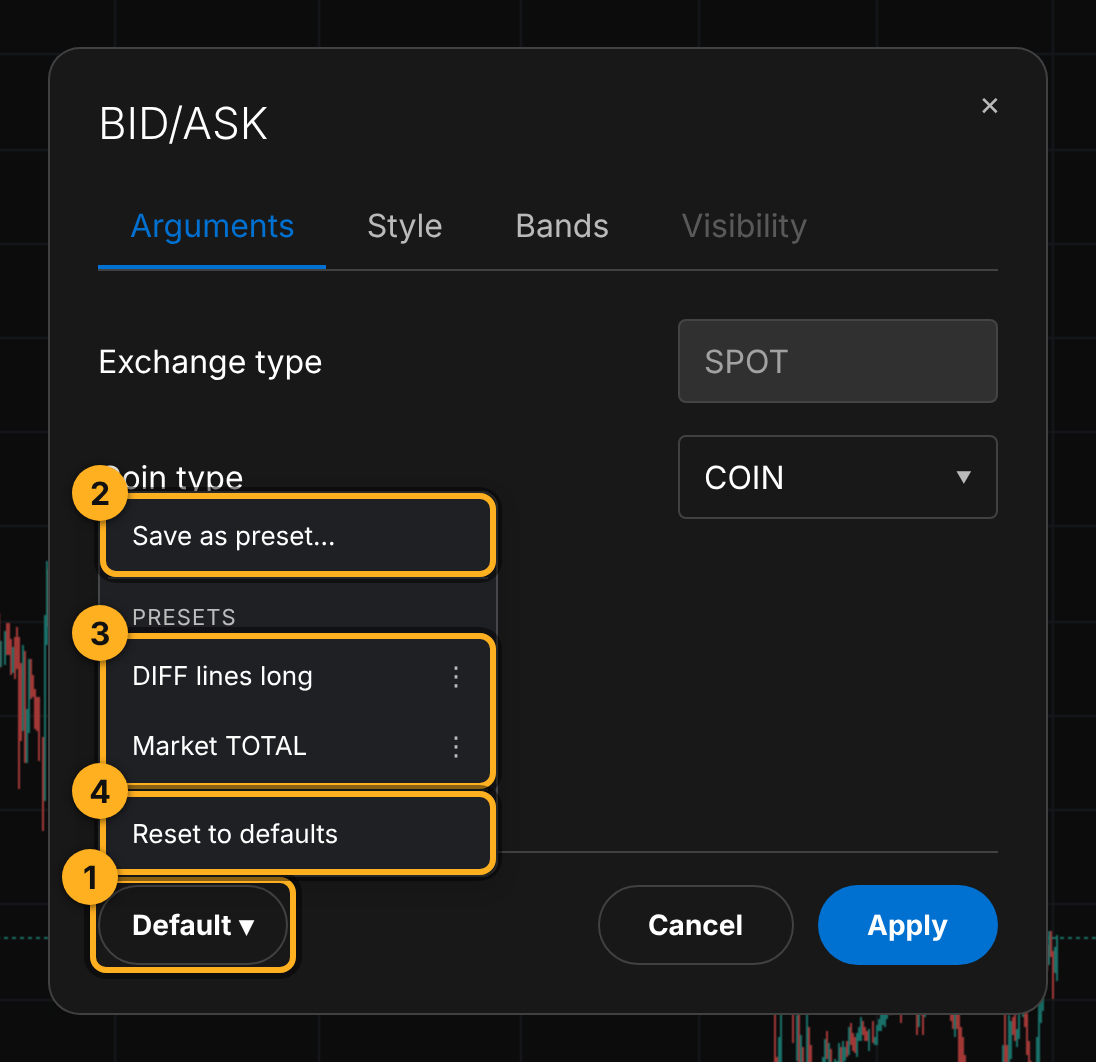
Open the indicator's settings window and set it up the way you want. At the bottom left there is a button with the selected preset's name. If no preset is selected, it says Default ▾. Click it.
2. Save the preset
Pick Save as preset…, type a name in the Save preset window and save. If you leave the name as is, the preset gets a name like Preset 1.
3. Apply the preset
Open the settings window of the same indicator on any coin or in a new copy of the indicator. Click the menu button and pick the preset in the PRESETS list. The settings appear in the window. Click Apply to put them on the chart.
4. Manage presets
Each preset in the list has a ⋮ button.
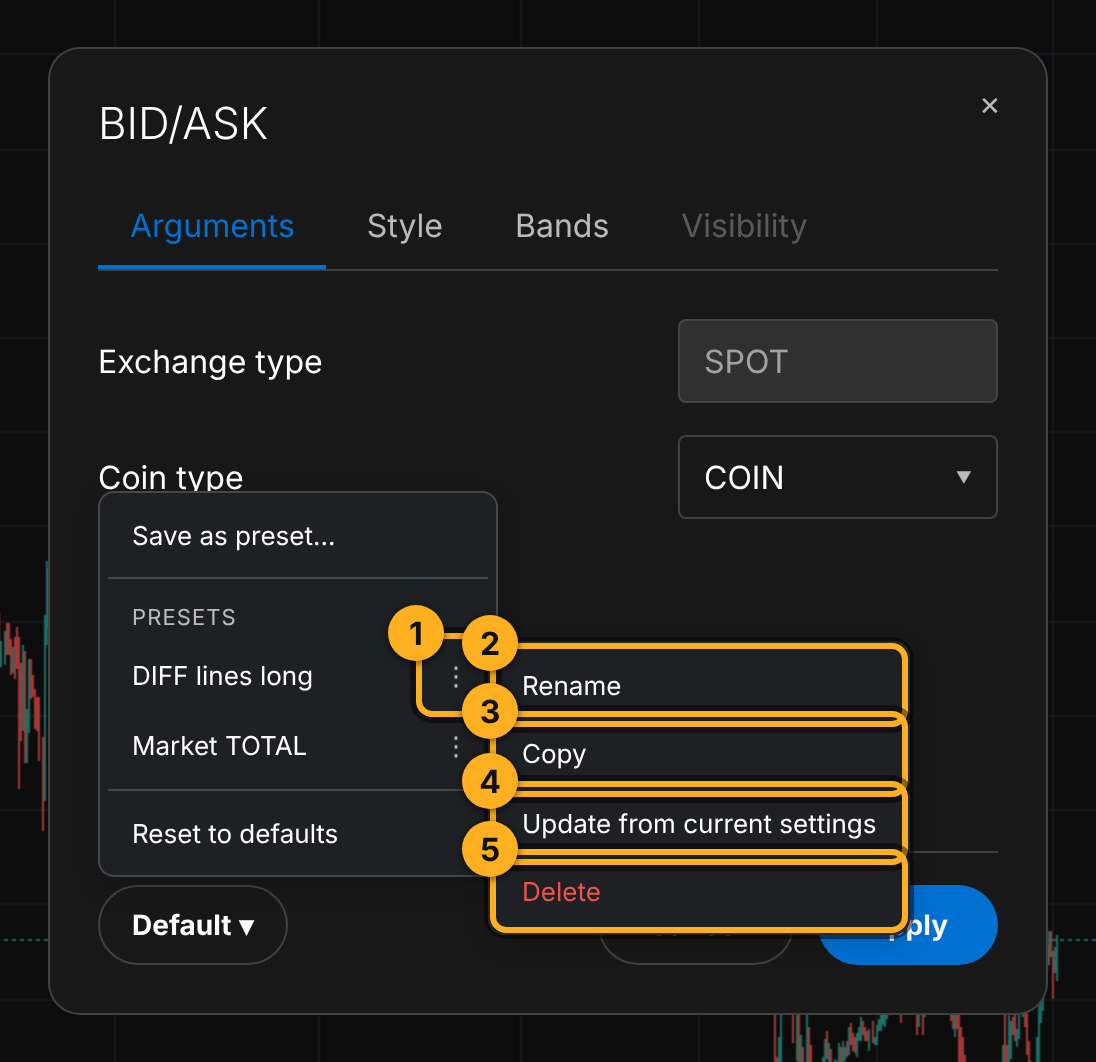
Update from current settings is handy when you've tweaked the settings and want the preset to remember the new version from now on.
Tips
- Save the chart first, then the template. This message means the indicator isn't in any saved chart preset yet. Add the indicator to the chart, click Save at the top right above the chart and save again. The Save button shows up when the open chart preset has unsaved changes.
- The limit is 10 presets per indicator type. When the list is full, delete a preset you don't need or overwrite one with Update from current settings.
- An indicator preset can't be sent as a link. To share settings with someone, add the indicator to the chart and share the chart preset: the link carries every indicator with its settings.
Try it yourself
- Add the BID/ASK indicator to the BTCUSDT chart, set up the lines and save the chart preset with Save at the top right above the chart.
- Open the indicator's settings, click Default ▾ → Save as preset… and save the settings.
- Switch the chart to another coin, add another BID/ASK and apply the saved preset.
Not financial advice.